Understand the file, not just its fields.
Read common parameters first, then explore container, video, audio, and subtitle tracks. Search fields, read explanations, or open the raw JSON.
Learn about parametersUse local AI to find people and vehicles, then review their tracks. Locate text and clock watermarks with OCR. Frame-number seeking, independent Quick View windows and parameter comparison take you back to the relevant frame.
macOS 14+ · Apple Silicon · Local test build
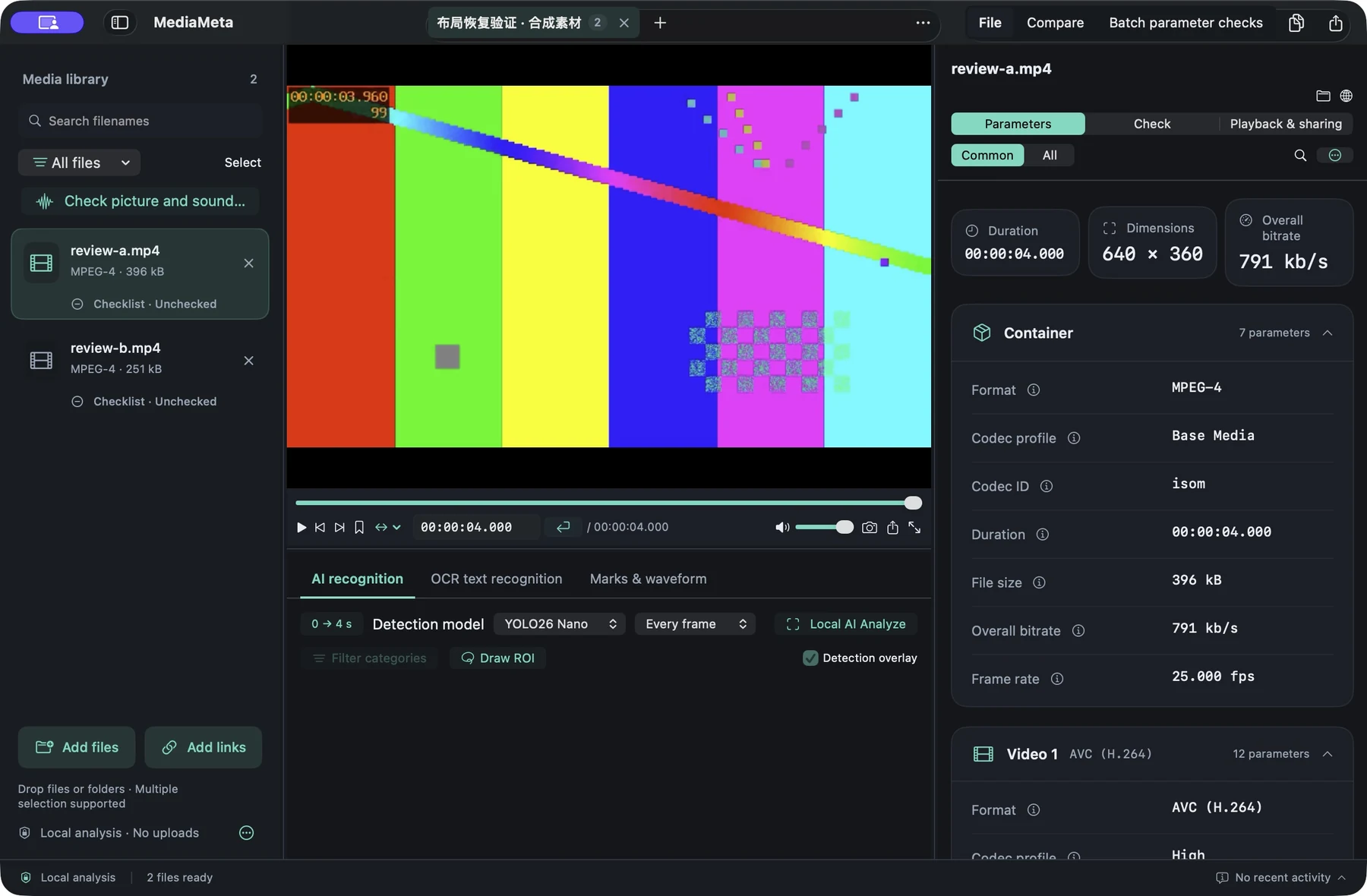
Detect and track 80 classes of objects, including people and vehicles, on your Mac. Overlays, class timelines and a track list show the first and last observed moments. Click a track to return to a matching frame.
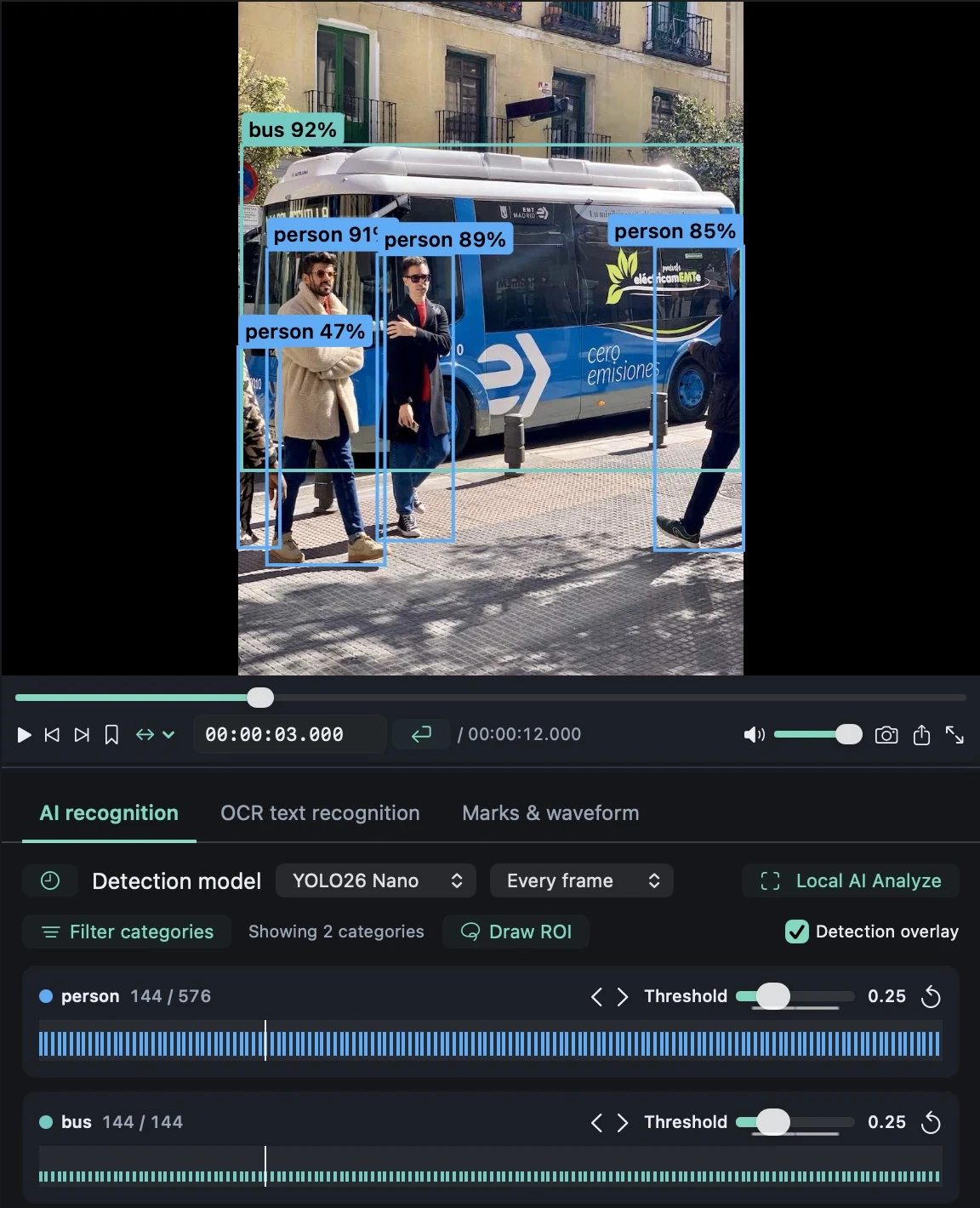
YOLO26 Nano / RF-DETR Nano · Local Core ML inference · No cloud account
OCR extracts on-screen text and locates its moments. Select a clock watermark region to compare the displayed clock with elapsed video time and inspect frames around suspected jumps. Markers and waveforms keep your review in context.
Detection and tracking help locate and review footage; they do not establish identity, unique person counts or links across videos. Track IDs apply only within one analysis. Sampling can miss brief appearances, and unanalyzed ranges do not establish absence.
Start with the information you need. Reach for raw fields, track mapping, and advanced controls when the task calls for them.
Read common parameters first, then explore container, video, audio, and subtitle tracks. Search fields, read explanations, or open the raw JSON.
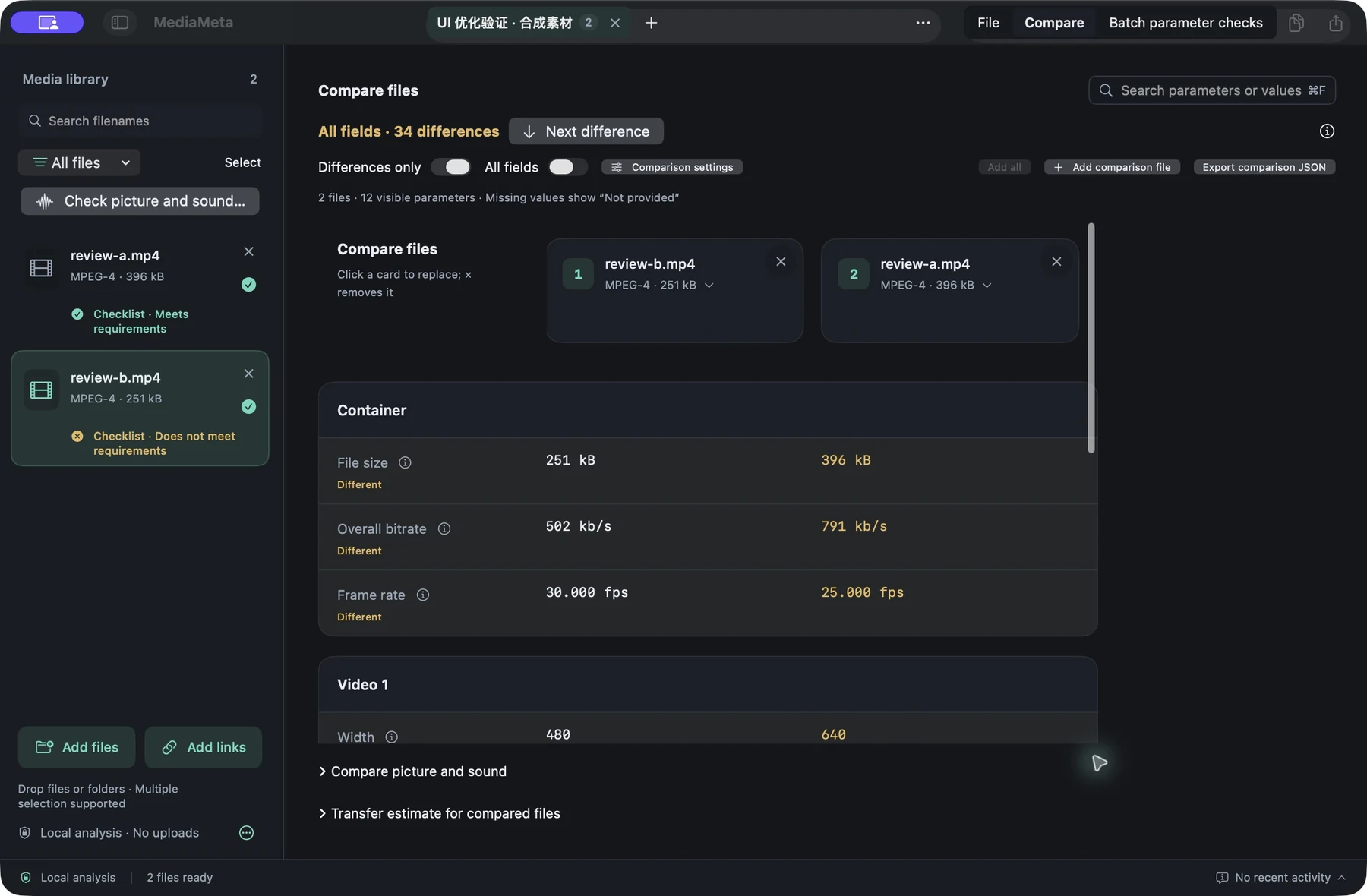
Learn about parametersCompare media parameters across multiple files against a baseline. Normalize codecs and units, adjust numeric tolerances and ignored fields, and resolve ambiguous track matches manually.
Explore both kinds of comparisonUse a shared parameter checklist or draft a template from a reference video. Separate mismatches, review items, and unknowns; expand passing items on demand. Parameter compliance is not a complete quality assessment.
Build a checklist from a referenceEach tab is an independent workspace. Open several files in Quick View, each with its own playback state and Dock preview. Seek by frame number in the workbench or Quick View; temporary files enter your library only when you explicitly import them.
Explore workspaces and Quick ViewIn the parameter page’s More menu, choose “Use as check reference…” to draft editable rules from a parsed video.
Select the codecs, dimensions, frame rate, or audio parameters that must match. Review values, tolerances, and track matching, then save for single-file or batch checks.
Read the template guideWorkflow illustration, not an app screenshot. Available fields depend on parsing; a template is not quality certification.
Technical checks, picture and sound checks, and parameter checklists have separate records. Export reports that have actually run, with their range, tracks, rules, and unknowns intact.
Choose the right reportInspect container structure, indexing, timelines, or decoding on demand. The required ffprobe / ffmpeg tools are bundled.
Compare content evidence for selected ranges and tracks. Matching samples do not prove whole-file identity, visual quality, listening quality, or synchronization.
Read reports offline, or connect CLI, machine-readable JSON, JUnit, and CI commands to a developer workflow.
Drop in files or folders, then search, filter, and select. Pause, cancel, or retry the parsing queue.
Compare parameters and locate issues with frame numbers, object tracks, OCR or markers. Review files in independent Quick View windows; choose a range before running the checks you need.
Review against a checklist and inspect privacy fields before sharing. Take a report, frame, or clip—not an unqualified “pass.”
Parsing, content analysis, and local AI do not require media uploads. Link checks request the address you specify. App diagnostics are enabled by default when configured and can be disabled in Settings; feedback separately asks you to confirm what is sent.
Pre-sharing checks read parsed privacy fields and additional tracks. They do not scan faces, voices, or filenames, or remove information automatically.
What it can do—and what it cannot prove.
No. Parameter checklists evaluate specified fields. Content checks cover selected ranges, tracks, and modes; technical checks record what actually ran. Playback, completed decoding, and matching parameters are different kinds of evidence.
Local AI and OCR process media on your Mac without requiring media uploads. Results help you locate and review content, not certify authenticity or overall quality. Diagnostics and explicit link requests are separate data flows described in the privacy guide.
The current test build includes MediaInfoLib, ffprobe / ffmpeg, and AI / OCR models. No extra Python or media-tool installation is needed. Check tool status in Settings; local recognition needs no first-run model download.
No. It inspects parsed metadata and track structure without modifying media or generating an anonymous copy. No findings do not mean the file is anonymous; review picture, sound, filenames, and reports yourself.
The test build is intended for Macs with Apple silicon (M-series chips) running macOS 14 or later. Intel Macs are not supported. Read the test-build installation notes before installing.
Start with one file. Explore the tools your task needs.
Public downloads coming soon
The current test version is 0.2.0 / Build 82. Public downloads are not available yet. If macOS shows a security warning, read the installation notes first; do not disable security protections.
